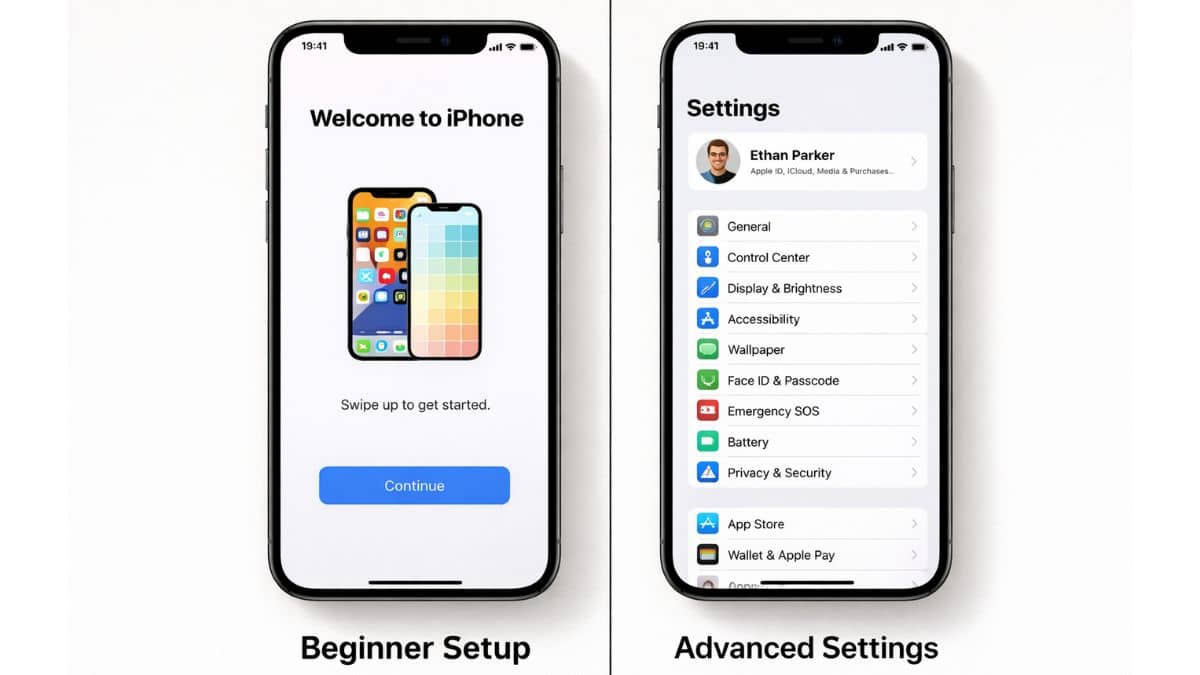
Not all iPhone users interact with iOS the same way. Some are first-time smartphone owners learning basic navigation, while others rely on advanced features for productivity, automation, and workflow management. The strength of iOS lies in its ability to serve both groups without overwhelming beginners or limiting experienced users.
A well-designed operating system must scale with user experience. iOS achieves this by offering simple default behaviors while quietly supporting advanced capabilities beneath the surface. This layered design allows users to grow their skills over time without needing to switch platforms.
For users in the United States where iPhones are widely used across personal, educational, and professional environments understanding how to progress from beginner to advanced usage unlocks the full value of the device.
This explains how iOS supports different user levels, outlines foundational knowledge for new users, and explores advanced system capabilities for experienced users.
Understanding the Beginner Experience in iOS
iOS is intentionally designed to be intuitive. New users are guided through setup and daily tasks without needing technical expertise.
First-Time Device Setup
When setting up an iPhone, users are guided through language selection, Wi-Fi connection, Apple ID login, and security configuration. The process is structured and sequential, reducing confusion.
Because Apple controls both hardware and software, setup flows are optimized for clarity and consistency.
Default Interface Simplicity
The Home Screen presents a clean grid of apps. Core system apps are pre-installed and organized logically. Users can begin using the device immediately without customization.
Essential iOS Knowledge for Beginners
While iOS is intuitive, understanding a few core concepts significantly improves the beginner experience.
Navigation Basics
Users should understand:
- How to return to the Home Screen
- How to switch between apps
- How to access notifications and Control Center
These gestures form the foundation of everyday interaction.
Basic Settings Awareness
The Settings app controls Wi-Fi, display brightness, notifications, and privacy permissions. Beginners benefit from knowing where these controls are located.
Avoiding Common Beginner Mistakes
New users often make avoidable mistakes due to unfamiliarity.
Common issues include:
- Ignoring system updates
- Disabling important permissions accidentally
- Overcrowding the Home Screen with apps
Understanding how iOS organizes apps and settings prevents frustration.
Transitioning from Beginner to Intermediate
As users grow comfortable, they begin exploring additional features such as widgets, Focus Mode, and app organization.
Organizing the Home Screen
Intermediate users often:
- Create folders
- Add widgets
- Remove unused apps
These steps improve efficiency without complicating the interface.
Managing Notifications
Learning to customize notifications reduces distraction and improves focus.
Advanced iOS User Capabilities
Advanced users interact with iOS beyond surface-level functions. They optimize workflows, manage system settings deeply, and automate repetitive tasks.
Custom Automation
The Shortcuts app allows advanced users to create workflows that combine multiple actions. Automations can trigger based on time, location, or system events.
Advanced Privacy Controls
Experienced users review app permissions regularly and adjust location access, tracking permissions, and background activity.
Productivity at Advanced Levels
Advanced users often rely on iOS as a productivity tool.
They may:
- Use Focus Modes strategically
- Integrate calendar and reminders workflows
- Sync documents across devices
The ecosystem integration enhances these workflows further.
Hidden Features and Power Tools
iOS includes features that are not immediately obvious but provide meaningful advantages.
Examples include:
- Back Tap gestures
- Advanced search capabilities
- Keyboard shortcuts for connected devices
Discovering these features transforms how users interact with the system.
Accessibility for All Skill Levels
Accessibility tools benefit beginners and advanced users alike. Larger text, voice control, and visual adjustments enhance usability.
Advanced users often leverage accessibility tools creatively to optimize workflows.
Managing Storage and Performance by Skill Level
Beginners may rely entirely on automatic storage management. Advanced users monitor storage usage more closely and offload apps strategically.
Understanding performance indicators helps users respond appropriately without overreacting.
Security Awareness by User Level
Beginners should focus on:
- Strong passcodes
- Biometric authentication
- Software updates
Advanced users may additionally:
- Monitor account activity
- Configure two-factor authentication carefully
- Review app tracking permissions
Security awareness grows with experience.
Ecosystem Integration for Different Users
Beginners may use a single iPhone, while advanced users often integrate multiple Apple devices.
Learning how to sync data across devices increases productivity and continuity.
Customization Depth by Skill Level
Beginners may prefer default layouts. Advanced users experiment with widgets, Focus Modes, and automation triggers.
iOS supports gradual progression without overwhelming new users.
Learning Curve and Long-Term Growth
iOS is designed for gradual learning. Beginners can operate effectively without exploring every feature. Over time, curiosity leads users to discover deeper system capabilities.
This growth path makes iOS sustainable for long-term use.
When to Explore Advanced Features
Users may consider exploring advanced features when:
- They rely heavily on their device for work
- They seek greater efficiency
- They want more control over privacy and customization
Exploration should be intentional and gradual.
Common Myths About Advanced iOS Usage
Some believe advanced usage requires technical expertise. In reality, most advanced features are accessible through guided system interfaces.
Another myth is that beginners must master everything immediately. iOS supports progressive learning without pressure.
Teaching iOS to New Users
Many experienced users help family members or colleagues learn iOS. A structured approach works best:
- Teach navigation gestures
- Explain basic settings
- Introduce privacy awareness
- Gradually explore customization
This staged method builds confidence.
Supporting Older or Less Technical Users
iOS includes features that simplify interaction for users who may not be comfortable with technology.
Larger text, simplified layouts, and Guided Access help create a comfortable environment.
Advanced Troubleshooting Awareness
Advanced users may recognize deeper issues such as background activity conflicts or storage pressure. However, even advanced troubleshooting should rely on built-in system tools.
Avoiding unofficial modifications preserves system stability.
Balancing Simplicity and Power
The true strength of iOS lies in its ability to balance simplicity for beginners with depth for advanced users. This layered design reduces cognitive overload while offering powerful tools beneath the surface.
Long-Term Value of Skill Development
As users deepen their understanding of iOS, they unlock efficiencies that save time and reduce frustration. Knowledge compounds over time, making devices feel more capable rather than more complicated.
iOS serves users at every level from complete beginners to experienced power users. Its layered design ensures accessibility without limiting capability. Beginners can rely on intuitive defaults, while advanced users can explore automation, customization, and deep system controls.
By understanding how iOS scales with user experience, individuals gain confidence and maximize their device’s potential.
Yes. iOS supports progressive learning without forcing complexity upfront.
No. Advanced features are built into the system and operate within safe limits.
Yes. iOS is designed to be intuitive, with guided setup and consistent navigation.