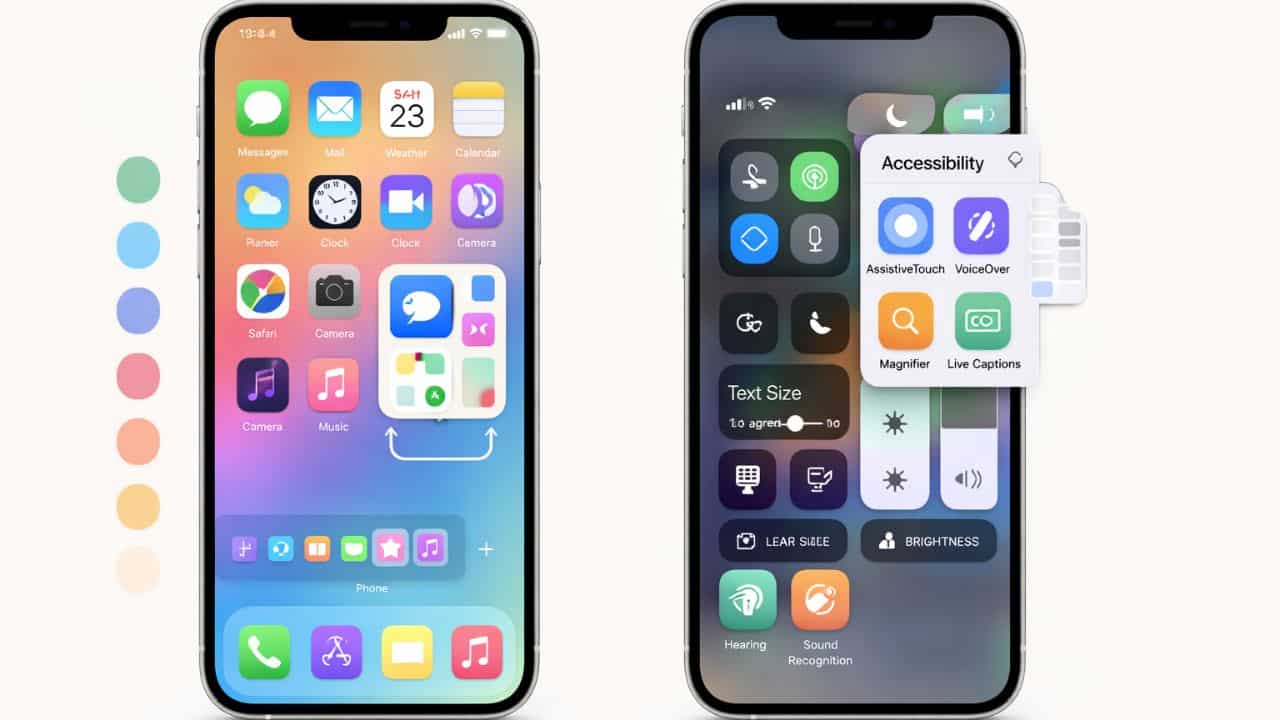
Customization and accessibility are often treated as optional features, but in iOS they are core system capabilities. Apple designs iOS to work well out of the box, yet also provides deep controls that allow users to adapt the system to their preferences, habits, and physical needs.
Customization improves comfort and efficiency. Accessibility ensures usability for people with diverse abilities, but it also enhances the experience for all users. Features originally designed for accessibility often become mainstream productivity tools because they simplify interaction and reduce friction.
For users in the United States, iPhones are used across work, education, communication, and daily life. A system that adapts to individual needs is not just convenient it is essential. iOS combines customization and accessibility into a unified framework that prioritizes usability, consistency, and long-term reliability.
This explains how iOS customization works, how accessibility features are structured, and how users can tailor the system to match their preferences without compromising performance, security, or stability.
The Design Philosophy Behind iOS Customization
iOS customization follows a deliberate philosophy. Rather than offering unlimited visual changes that could destabilize the system, iOS provides structured customization that preserves consistency.
Key principles include:
- Customization without breaking system behavior
- Accessibility features integrated at the system level
- Consistent appearance and interaction across apps
- User control without technical complexity
Because Apple controls both hardware and software, customization options can be implemented deeply without compromising performance or security.
Home Screen Customization in iOS
The Home Screen is the most visible area of customization in iOS. Over time, it has evolved from a static grid into a flexible interface that balances simplicity and personalization.
App Arrangement and Folders
Users can arrange apps freely across multiple Home Screen pages. Related apps can be grouped into folders, reducing clutter and improving navigation.
Folders automatically organize apps by category, but users can rename them for clarity. This allows logical grouping without complex configuration.
Widgets on the Home Screen
Widgets bring dynamic information directly to the Home Screen. Unlike static icons, widgets update content automatically based on usage patterns.
Widgets can display:
- Weather and calendar information
- Reminders and notes
- Battery status and system data
This reduces the need to open apps repeatedly and improves efficiency.
Lock Screen Customization
The Lock Screen plays a critical role in daily interaction. iOS allows users to customize the Lock Screen without exposing sensitive information.
Visual Customization
Users can personalize wallpapers, fonts, and layouts. Lock Screen widgets provide glanceable information such as time, date, and status updates.
Customization options are designed to preserve readability and security, even with visual personalization.
Functional Customization
Lock Screen controls allow quick access to essential functions while keeping the device secure. Notifications can be displayed in a summarized or detailed format based on user preference.
App Library and Minimalist Customization
For users who prefer simplicity, iOS offers the App Library. This feature automatically organizes apps into categories and allows users to hide Home Screen pages entirely.
This minimalist approach reduces visual noise while maintaining full access to all installed apps.
Notification Customization
Notifications are a major source of distraction if not managed properly. iOS provides granular notification controls to balance awareness and focus.
Users can:
- Customize notification styles per app
- Enable or disable previews
- Schedule notification summaries
These controls allow users to tailor how and when information appears.
Display and Text Customization
Visual comfort is a major factor in long-term usability. iOS includes extensive display and text customization options.
Text Size and Readability
Users can adjust system-wide text size and enable bold text for improved readability. These changes apply across supported apps, ensuring consistency.
Color and Contrast Adjustments
Display options allow users to adjust contrast, reduce transparency, and apply color filters. These settings help users with visual sensitivity or color perception differences.
Sound and Interaction Customization
iOS allows customization of sounds, vibrations, and interaction feedback.
Users can:
- Adjust system sounds and alerts
- Customize vibration patterns
- Enable visual or tactile feedback
These settings improve awareness and comfort without altering system functionality.
Accessibility as a Core System Feature
Accessibility in iOS is not isolated. It is built directly into the operating system, ensuring features work consistently across apps and system functions.
Accessibility settings are organized by functional needs rather than medical labels. This inclusive approach makes features easier to discover and use.
Touch and Motor Accessibility
iOS includes tools that assist users with limited mobility or fine motor control.
AssistiveTouch
AssistiveTouch provides an on-screen control menu that replaces complex gestures or physical buttons. Users can customize actions and shortcuts for common tasks.
Touch Accommodations
Touch settings allow users to adjust sensitivity, ignore repeated touches, or modify gesture recognition. These options help reduce accidental input.
Voice and Speech Accessibility
Voice-based interaction plays a major role in iOS accessibility.
Voice Control
Voice Control allows users to navigate and control their device entirely through spoken commands. This feature benefits users with mobility limitations and those who prefer hands-free interaction.
Dictation and Speech Tools
Dictation converts speech into text system-wide. Speech features also support reading content aloud, improving accessibility and multitasking.
Visual Accessibility Features
iOS includes powerful visual accessibility tools designed to assist users with low vision or visual impairments.
Zoom and Magnification
Zoom allows users to magnify the entire screen or specific areas. Magnifier turns the device into a digital magnifying glass for real-world objects.
Display Filters
Color filters and grayscale options help users with color blindness or visual sensitivity. These adjustments apply across the system.
Hearing Accessibility Features
Hearing-related accessibility features improve communication and awareness.
iOS supports:
- Audio balance and mono audio
- Visual alerts for sounds
- Integration with compatible hearing devices
These features ensure audio content remains accessible and adaptable.
Cognitive Accessibility and Focus Tools
iOS includes features designed to reduce cognitive load and improve focus.
Guided Access
Guided Access limits the device to a single app and restricts specific areas of the screen. This is useful for children, learning environments, or focused tasks.
Simplified Interface Options
Users can reduce motion, limit visual effects, and simplify interactions to create a calmer, more predictable experience.
Accessibility Shortcuts
iOS allows users to enable quick access to accessibility features through shortcuts. These shortcuts can be triggered via gestures, buttons, or system menus.
This flexibility ensures accessibility tools are always available when needed.
Accessibility Benefits for All Users
Many accessibility features improve usability for everyone, not just users with specific needs.
Examples include:
- Larger text for readability
- Reduced motion for comfort
- Voice input for multitasking
Accessibility and customization together create a more inclusive and adaptable system.
Privacy and Accessibility
Accessibility features operate within the same privacy framework as the rest of iOS. Data processed by accessibility tools follows system-level privacy rules.
Voice, visual, and interaction data is handled securely and often processed on-device.
Long-Term Usability and Device Comfort
Customization and accessibility contribute directly to long-term device comfort. A system that adapts to changing needs remains usable over years of ownership.
This adaptability supports:
- Aging users
- Changing work environments
- Temporary injuries or conditions
Common Myths About iOS Customization
Some users believe iOS is not customizable. In reality, customization exists but is structured to preserve stability and performance.
Another misconception is that accessibility features are only for users with disabilities. Many features enhance daily usability for all users.
Who Should Explore iOS Customization and Accessibility?
These features are valuable for:
- Everyday users seeking comfort
- Professionals optimizing workflows
- Parents managing devices
- Users with visual, hearing, or mobility needs
iOS customization and accessibility reflect a design philosophy that prioritizes usability, inclusivity, and stability. Rather than offering unrestricted customization, iOS provides thoughtful controls that adapt the system to individual needs while preserving performance and security. By understanding and using these features, users can create a more comfortable, efficient, and personalized iPhone experience
No. Accessibility features are optional and only activate when enabled by the user.
Yes. Many features can be enabled or disabled quickly using accessibility shortcuts.
No. iOS customization options are designed to work within system limits and do not negatively impact performance.